
TableRun and MOGU: Running a Product Launch in One Spreadsheet
See how an ecommerce team can use a TableRun spreadsheet to draft colorway images, write listings in six languages and organize competitor research.

An ecommerce launch often starts with a spreadsheet. A product line turns into rows of items, and each item soon needs pictures, a title for every market it will sell in, a price that holds up against similar products, and a note on what was approved. The list usually stays in a spreadsheet while the rest of the work drifts into image tools, translation files and browser tabs.
TableRun is developed by MOGU. It keeps that list as the place where the work happens. Two fictional launches show how to organize product images, multilingual listings and market research around the same product rows. For a complete overview of TableRun's features, including its terminal, code execution and Computer Use, read TableRun: An AI Spreadsheet for Content Production on the TableRun blog.
In this article
- Why MOGU starts a launch from the list
- Product images from a single formula
- Listings in several languages
- Researching the market with the Agent
- Keeping control of larger runs
- What this launch shows
Why MOGU starts a launch from the list
Most launch questions are questions about the list. Is every colorway pictured? Does each market have a title? Which version did the team agree on? When the answers sit in five different tools, someone has to keep reconciling them by hand, and that effort grows with every product added.
In TableRun, a generated image or a translated title is written into the sheet beside the item it belongs to. Checking the launch then means reading down a column. When the work is ready, the same workbook can be shared by link or exported to Excel.
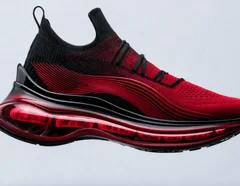
The examples below use two illustrative projects, a sneaker line called AERO and a skincare launch called HALO. Both are fictional brands made for this guide, and their images and videos were generated with AI. They show the shape of the workflow rather than results from a real store.
Product images from a single formula
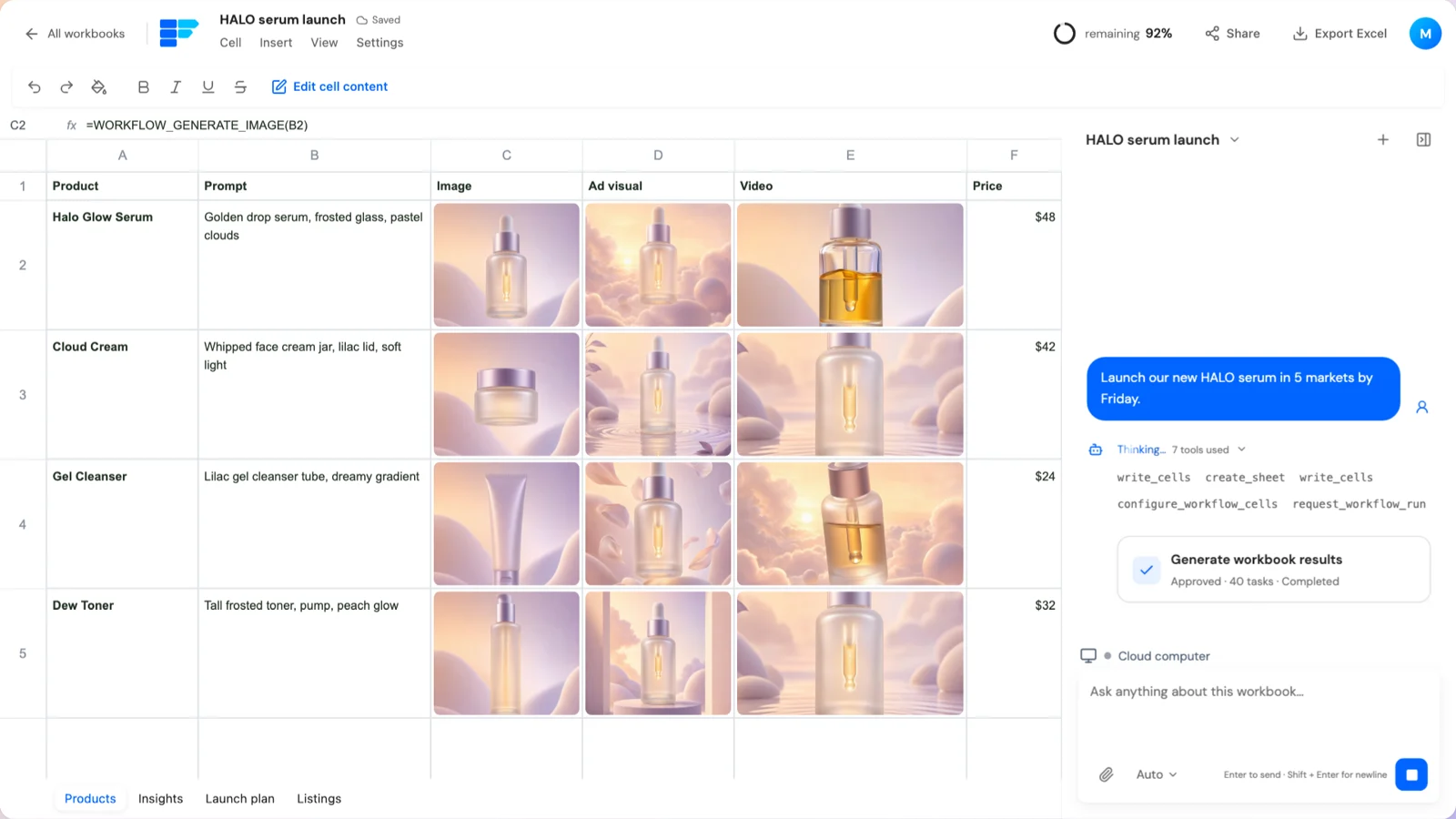
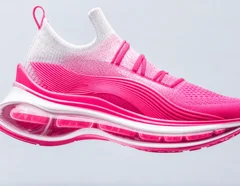
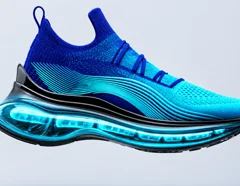
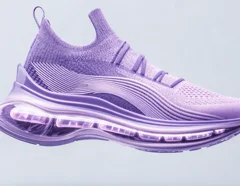
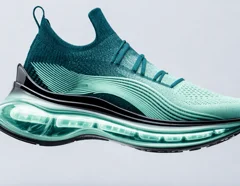
In TableRun, image generation can be written as a formula. A cell such as =WORKFLOW_GENERATE_IMAGE(B2) reads the prompt in B2 and places the generated picture in the cell itself.
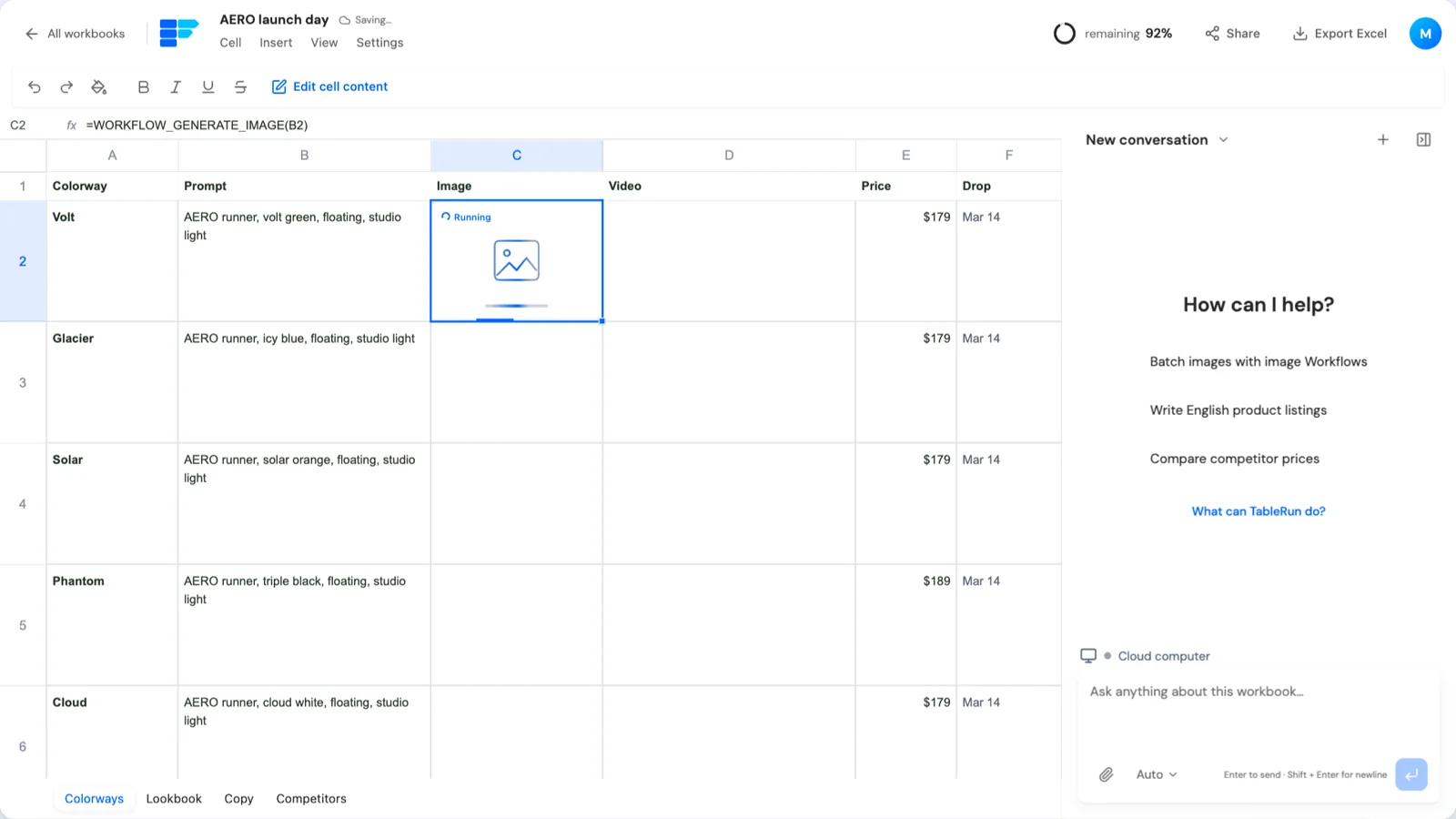
Because it is a formula, it behaves like one. Drag it down the column and each row generates its own image from its own prompt. For a seller, that turns a colorway list or a product range into a set of first drafts without opening a separate tool for every item.
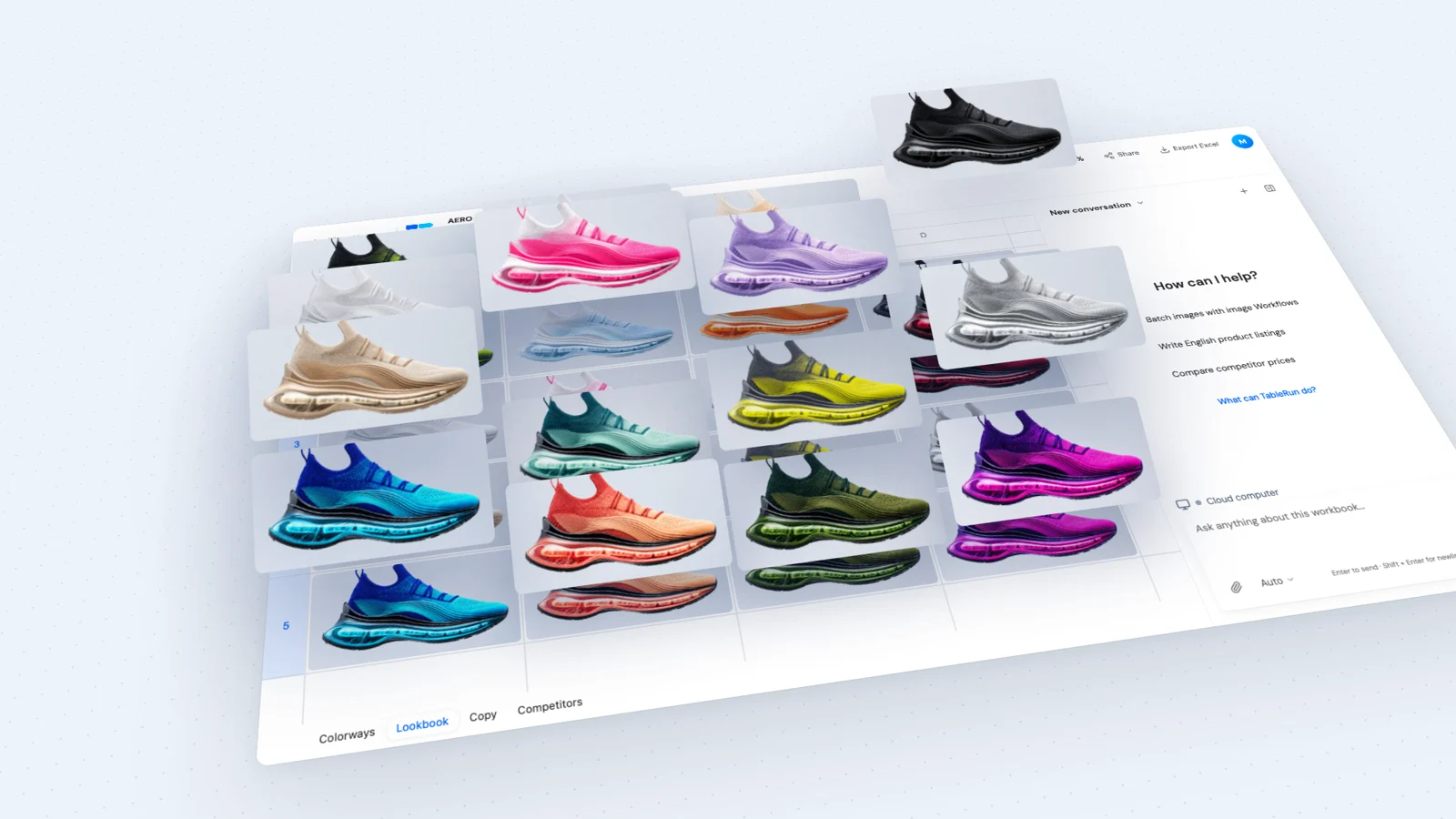
A second formula can turn a chosen image into a short video, using the image as the starting frame. When the brief changes, review the prompt and rerun the affected generation before using the result.
These results are starting points. A generated image is a visual proposal, and details such as color, material and proportions still need to be checked against the real product before anything goes on a listing page.
Listings in several languages
Selling across markets usually means the same product needs a title and description in each language. In TableRun, this can be a request to the Agent rather than a separate translation project.
In the AERO example, the request was: "Write launch copy for all 8 colorways in EN, JA, DE, FR, KO and ES." The Agent read the product rows and wrote the copy into new columns, one language per column.
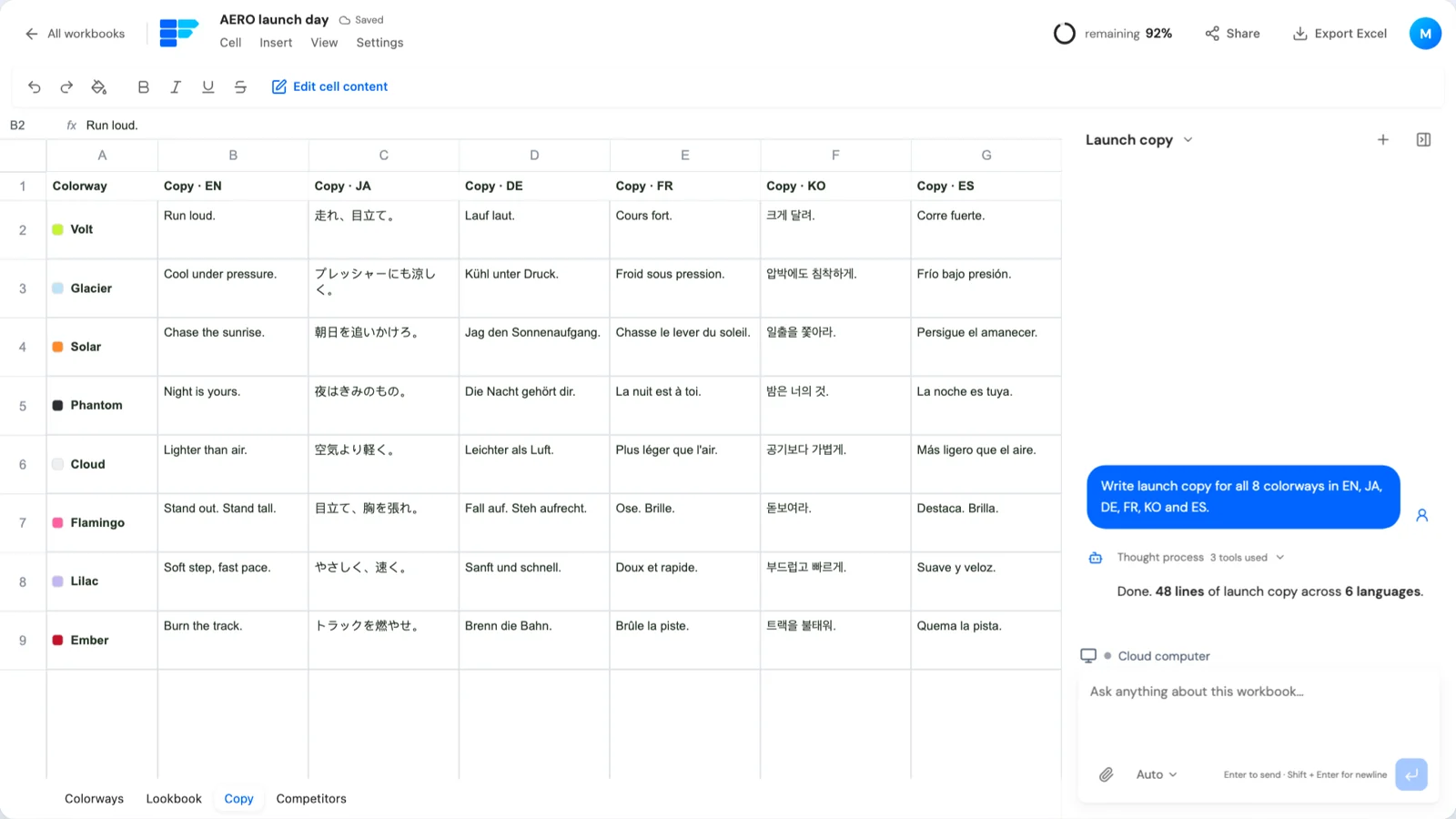
Keeping every language in one row makes review easier. A team member who reads German can scan the German column; a manager can check that no product is missing a title in any market. As with images, the copy is a draft for review, and market-specific terms, claims and regulations remain the seller's decision.
Researching the market with the Agent
Some questions need information from the web: what customers say about similar products, or how competitors price a comparable item. TableRun's Agent can open a cloud computer, read web pages and bring what it finds back into the workbook.
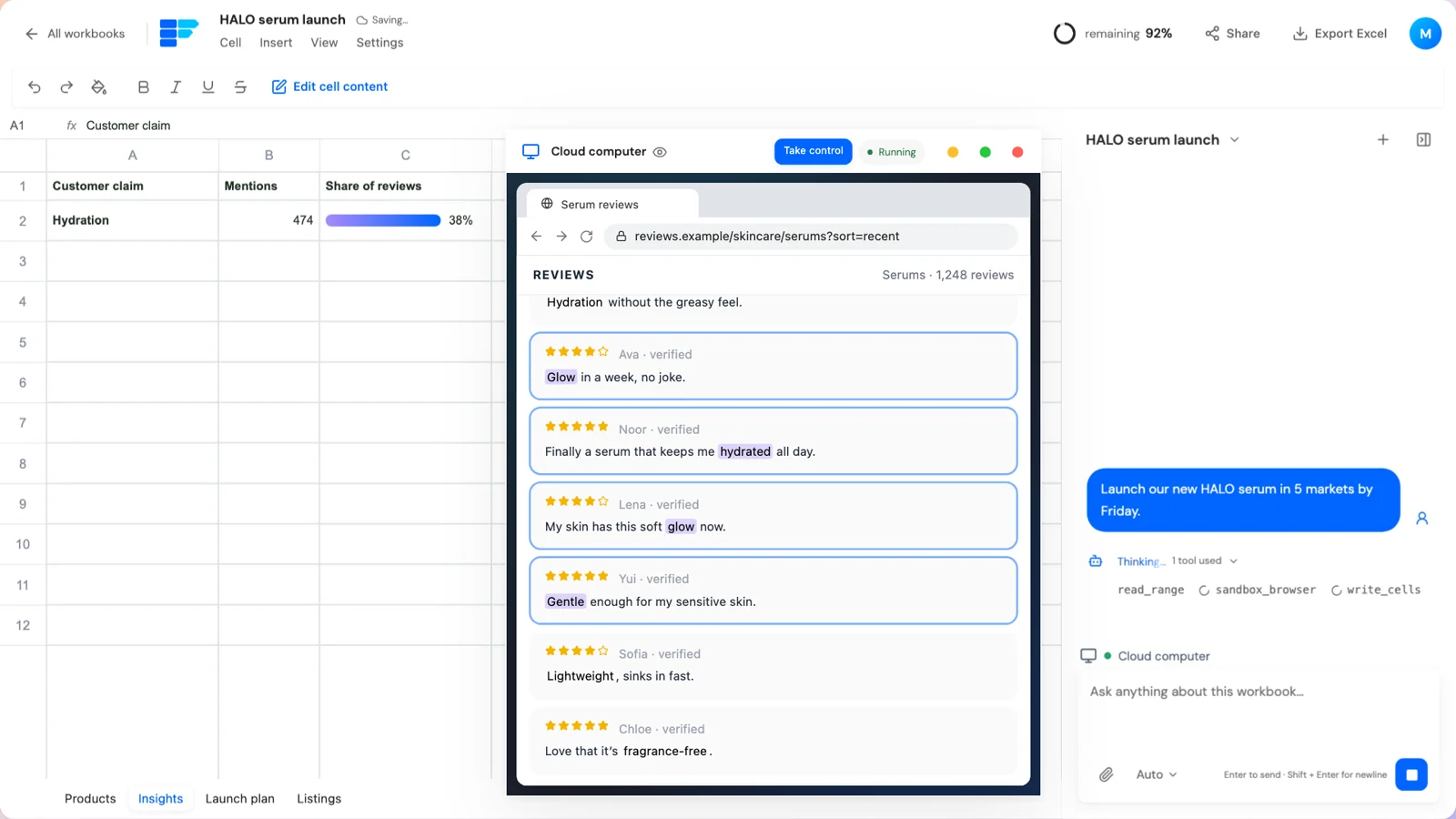
In the HALO example, the Agent read reviews of similar serums and recorded the most mentioned themes, such as hydration and glow, with how often each appeared. In the AERO example, it visited competitor product pages, recorded their prices and created a chart comparing them with the AERO price.
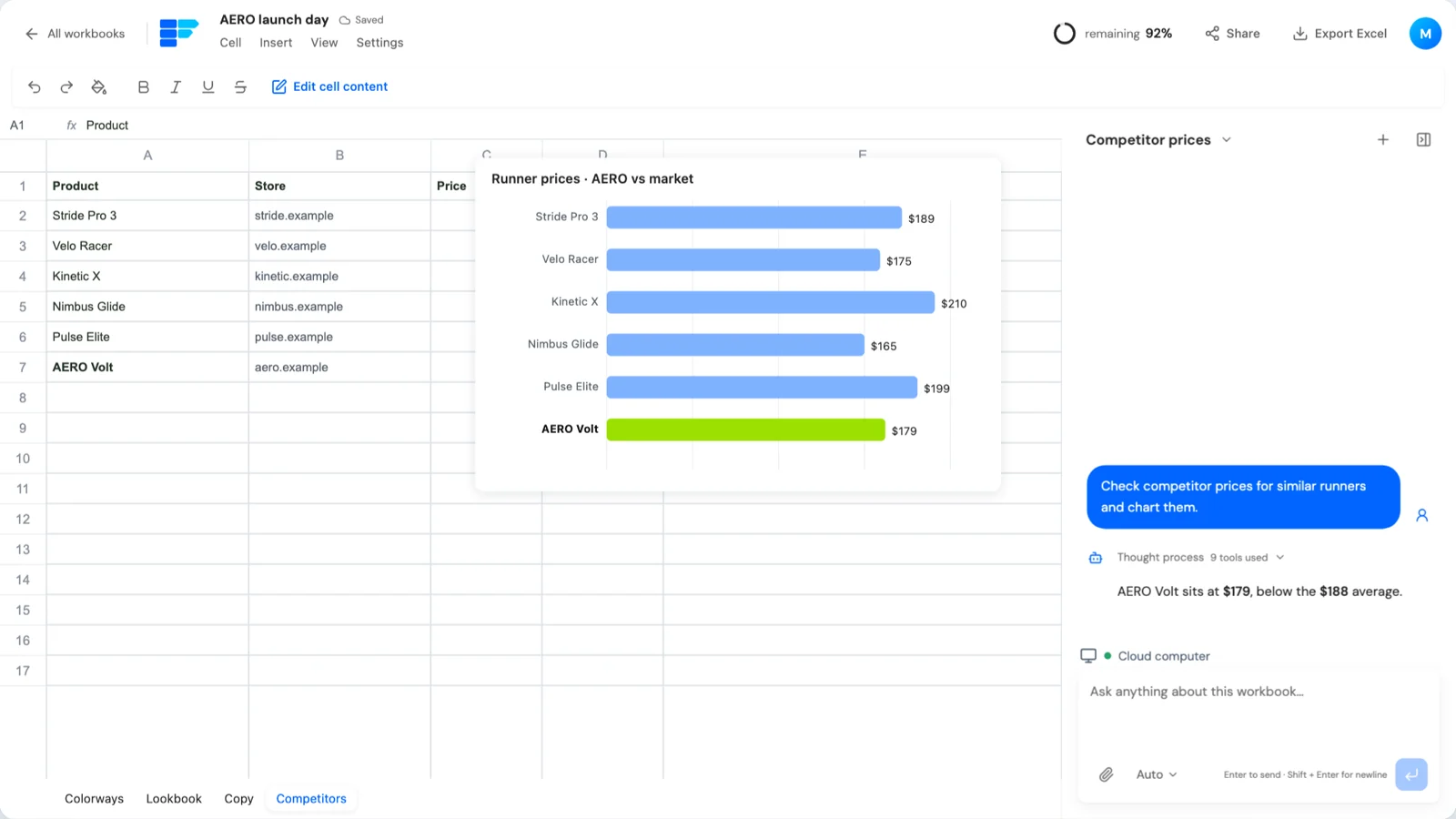
Research collected this way stays next to the products it informs. When a site needs a human step, such as choosing a delivery region, the Agent can ask you to take control of the cloud computer and hand it back afterwards. Treat the findings as a summary to verify. Websites change, and a sample of pages is not a full market study.
Keeping control of larger runs
Before generating dozens of images or videos, check which cells the batch will fill and how many assets it will create. When an Agent request would create a large batch, TableRun shows an approval card listing the cells involved and the number of images and videos.
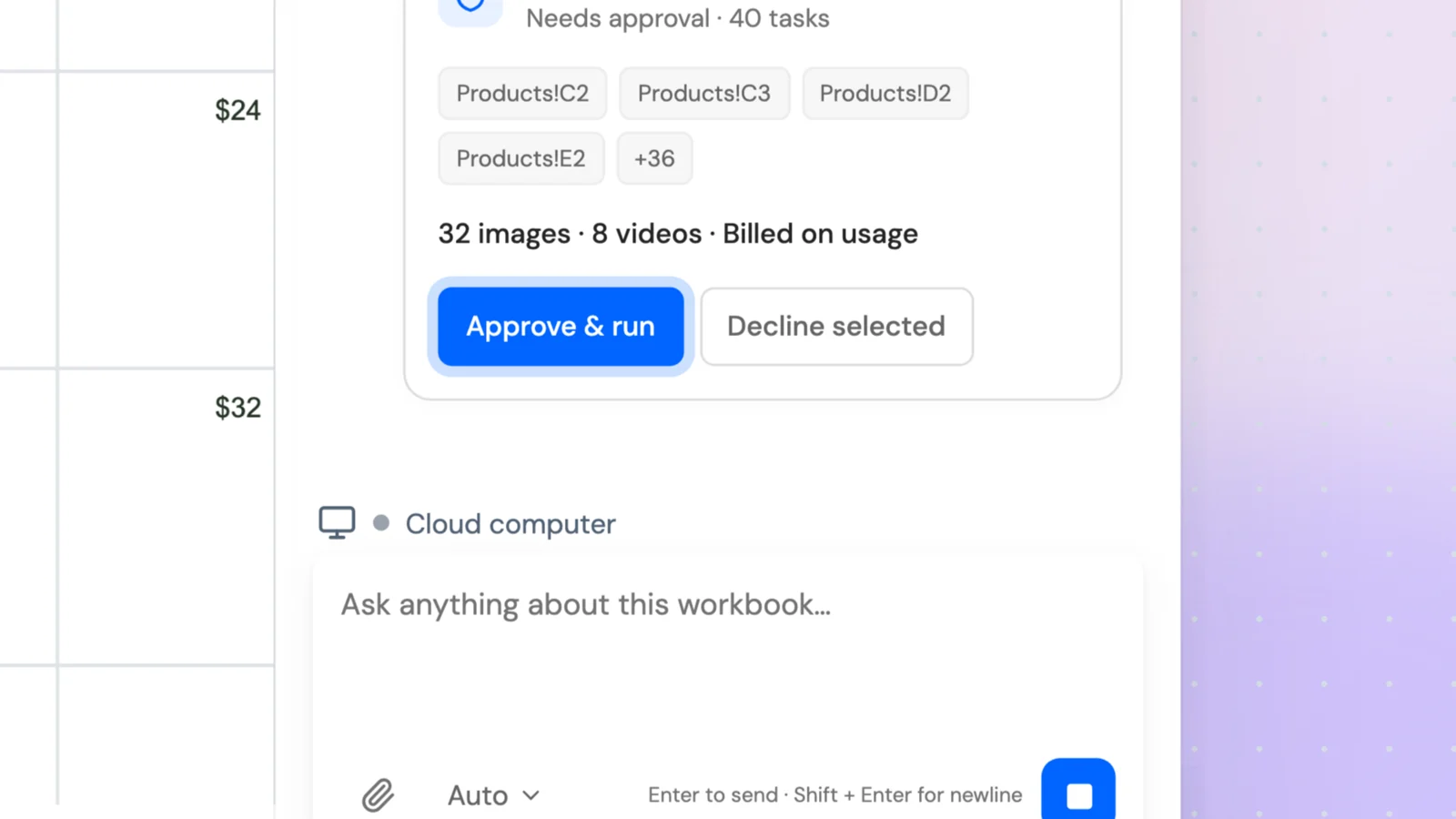
The work starts only after you approve it, and the results then fill in the cells as each task finishes. This keeps the merchant's role clear: the Agent prepares and runs the work, and you decide whether a large batch is worth running.
What this launch shows
Looking back over the two example launches, four steps show where a shared workbook can help:
- drafting a picture for every colorway before choosing which to refine;
- keeping each product's titles in all six languages on one row for review;
- gathering competitor prices and review themes next to the products they inform;
- approving a large generation batch once, with the scope visible, instead of starting dozens of separate jobs.
You can find TableRun alongside our other businesses in MOGU’s product overview. To try it with your own catalog, visit TableRun.


Frequently asked questions
Who develops TableRun?
TableRun is developed by MOGU.
Can I plan a whole product launch in TableRun?
Yes. A launch can live in one workbook: product rows, generated images and videos, listings for each market, competitor research and the approval of larger generation runs.
Do I need to write prompts for every product?
No. A formula written once can be dragged down a column so each row uses its own prompt, and the Agent can also fill in rows and set up formulas from a plain-language request.
Does TableRun run large jobs automatically?
When a request would create a large batch of images or videos, TableRun asks for approval first and shows how many tasks will run.
Can I use the results in Excel?
Yes. A TableRun workbook can be shared by link or exported to Excel.