
Commercial Video with WeShop Canvas: From Product References to Campaign Clips
Create commercial videos with WeShop Canvas: connect product references, Agent planning, model choices, and generation in one merchant workflow.
A MOGU guide to bringing the brief, visual decisions, and generation work into one merchant project.
A merchant preparing a commercial video has more to coordinate than a motion prompt. The product needs to be represented accurately, a suitable image needs to be chosen, and the movement needs to serve the campaign. Every revision also needs to use the right source material.
WeShop Canvas brings references, generated images, video, and Agent conversation into a connected visual workspace. For commercial work, the opportunity is to keep those decisions close to the material they concern—from selecting a product image to developing a short promotional clip.
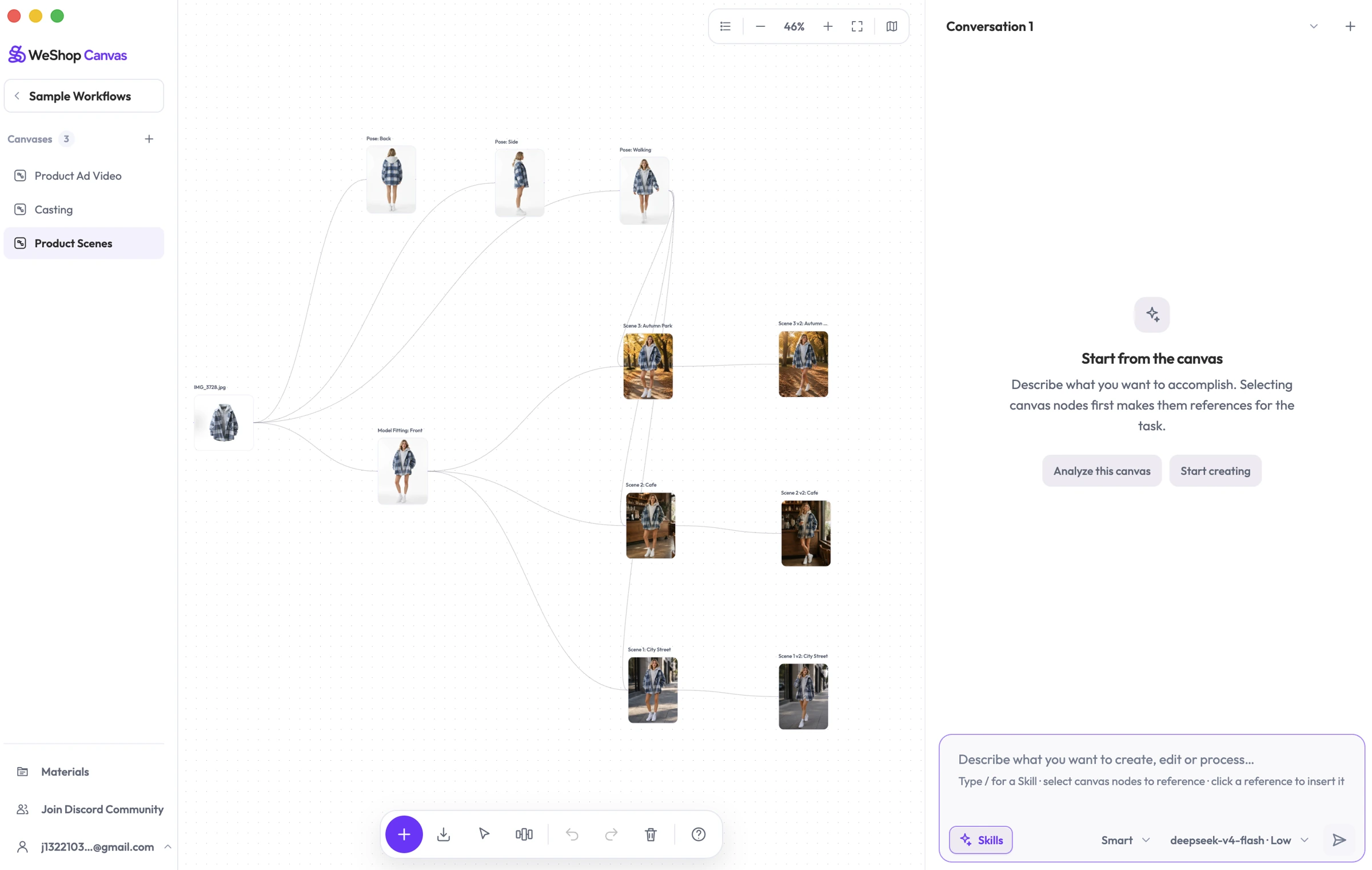
At MOGU, we approach this workflow through the merchant’s task. WeShop AI, backed by MOGU, supplies image and video creation capabilities. Canvas gives the creator a place to work with an Agent around those capabilities, while retaining control over product representation and the final selection.

Start with the Commercial Brief
Imagine you run a clothing shop and are preparing a short video for a new shirt. The team has a model photograph, garment references, and a simple objective: introduce the shirt clearly in a collection announcement. This is an illustrative project, rather than a campaign we have tested.
Before generating in WeShop Canvas, decide what the video should communicate. Is the priority the overall outfit, a particular garment detail, or the mood of the collection? The answer should guide both the starting image and the movement.
A first request to the Agent could be:
Help me plan a short commercial video for this shirt launch. Use the garment photographs to identify the product details that must remain recognizable. Propose a starting image and a restrained movement idea for a collection announcement. Show me the plan before generation.
The request gives the Agent a purpose and a review point. It is an example brief, not a promise that a single instruction will produce an approved campaign asset.
Work from References to a Selected Shot
The official WeShop Canvas apparel tutorial demonstrates a connected project: two references lead to a base image, pose variations, image-edit branches, and a five-second showcase video. Selecting an image attaches it to the conversation as a reference. The Agent proposes a plan, and generated results remain connected to their sources.
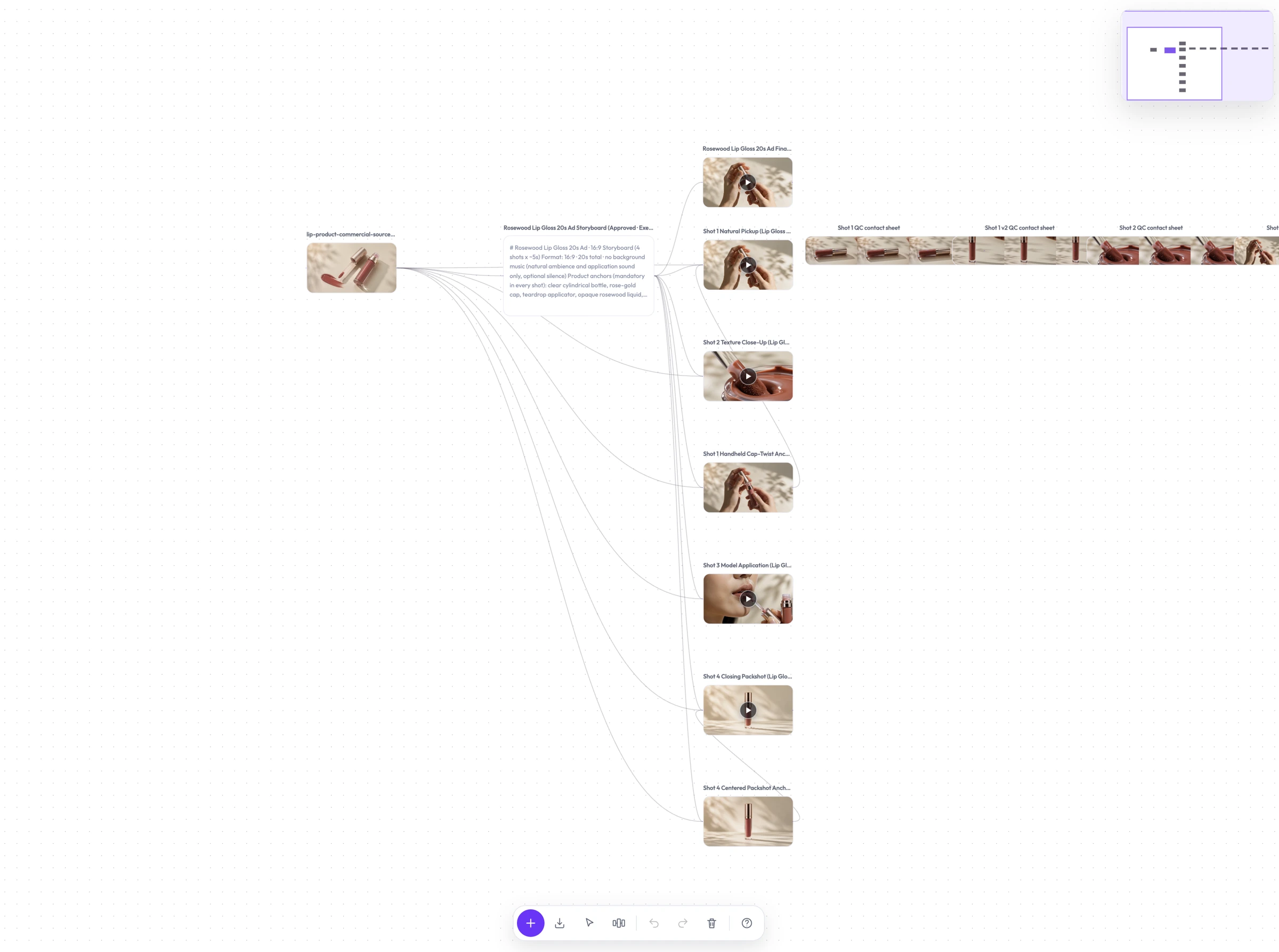
For the shirt launch, use that pattern to make decisions in stages. First establish an accurate visual of the garment. The Canvas apparel workflow shows how references become a base image and pose variations. Then compare the directions worth considering for the announcement. Choose the image that communicates the product most clearly before moving into video.
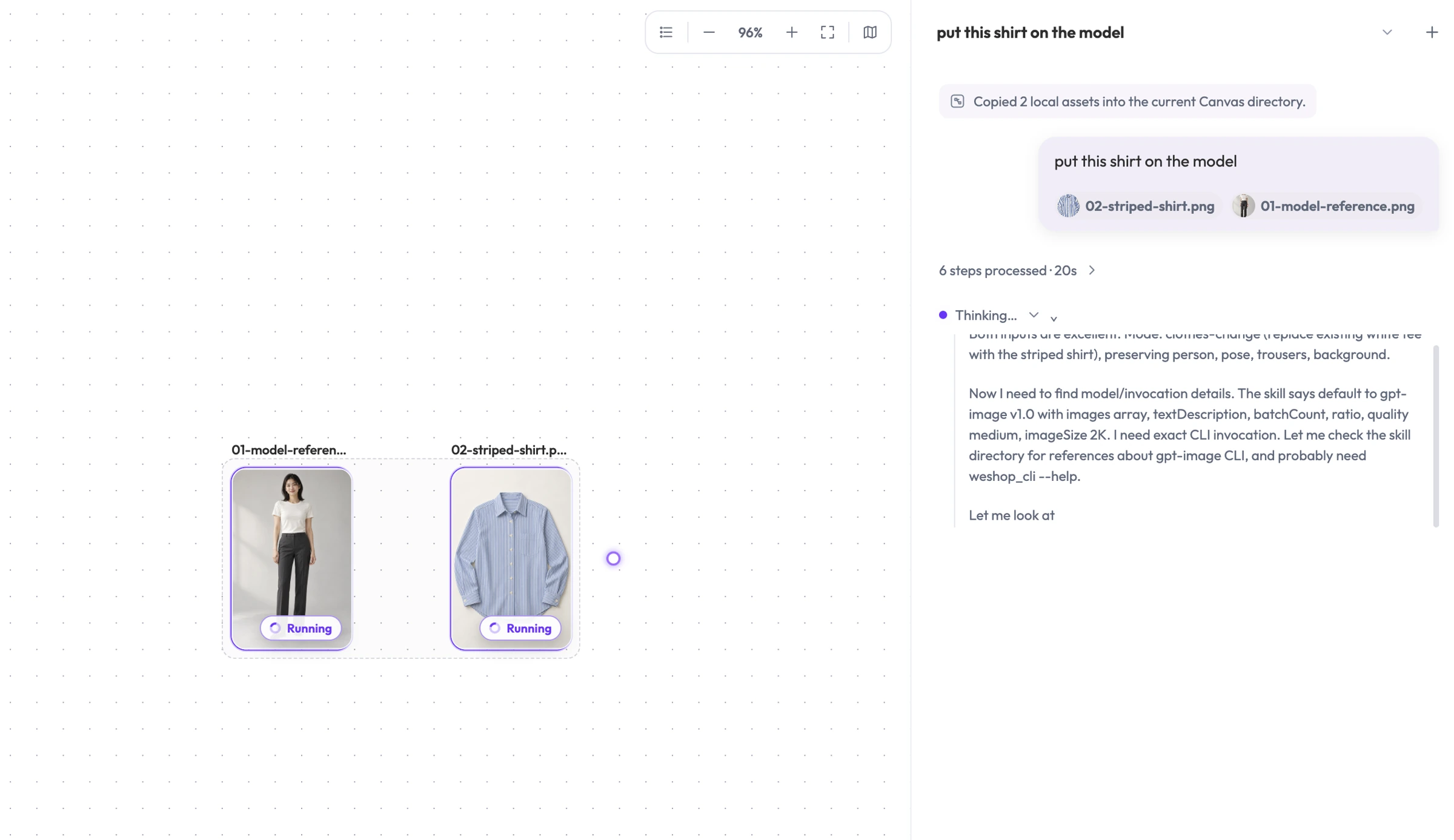
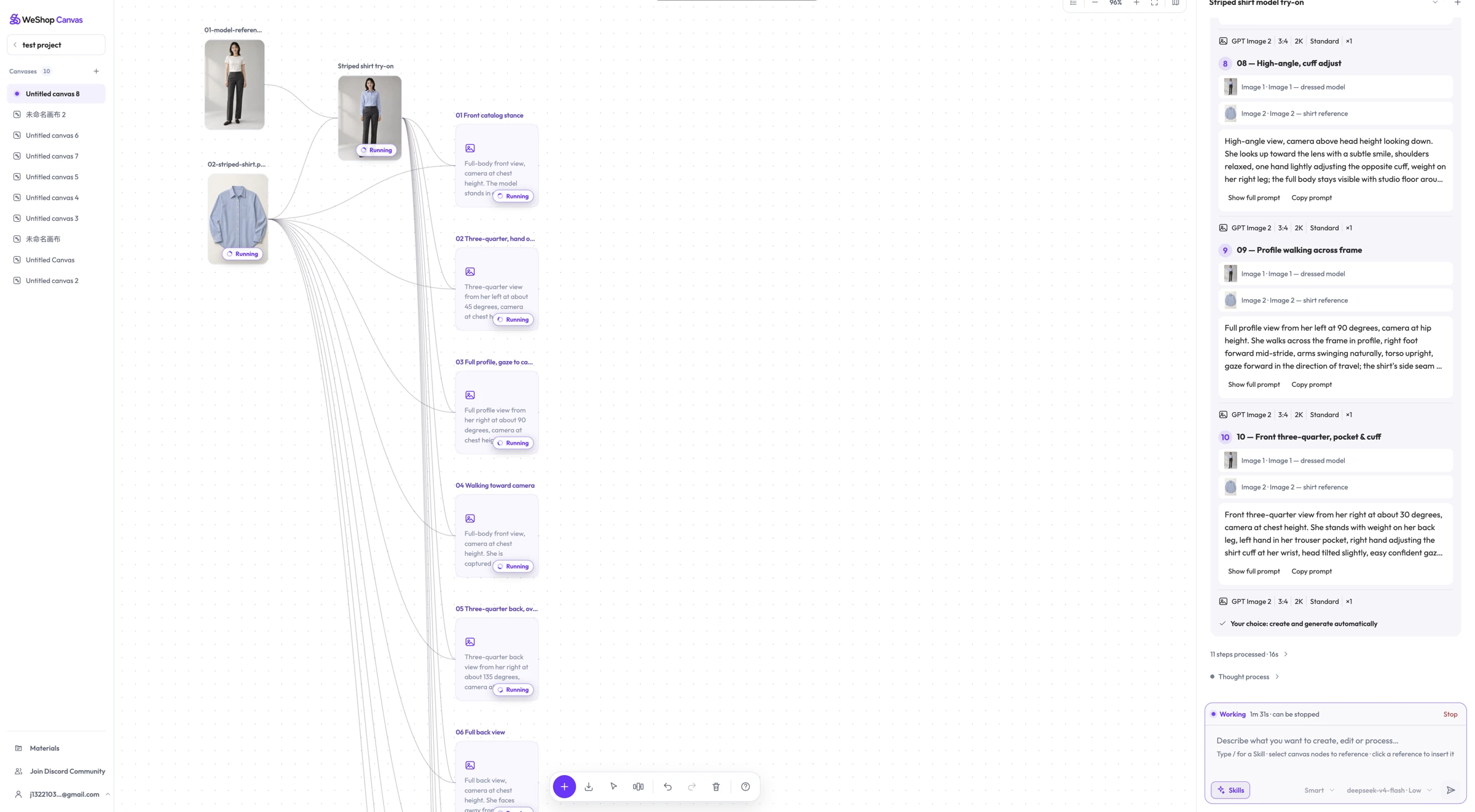
This makes the starting-frame decision explicit. If the pocket or collar is already wrong in the chosen picture, asking for motion does not resolve the underlying issue. Correct the image or return to a better source before spending generation power on a clip.
For help choosing the starting material, see our guide to AI clothing photography.
Keeping alternatives visible in WeShop Canvas lets merchants compare options directly: which composition supports the announcement, which preserves the garment, and which should become the basis of the video?
Our Canvas apparel workflow guide takes a closer look at reference roles, pose branches, and reviewing a selected frame.
What WeShop Supplies: Models and Generation Power
The production workflow has distinct parts. The Agent helps interpret the task and prepare a plan. An image model such as GPT Image 2.5 creates or edits visual material. An AI video model generates motion. Canvas keeps the materials and decisions visible together.
WeShop’s model selection guide documents image options including Nano, GPT Image, and Seedream, and video options including Kling, MiniMax, and Seedance. That is a platform capability reference; the choices exposed in a particular Canvas workflow should be checked in its current plan and generation settings.
For a merchant, model choice should follow the shot. A restrained product presentation and a large movement place different demands on generation. Review the proposed input, movement, and output conditions together, rather than selecting a model from its name alone.
Generation power is the service resource used to execute the work. In the documented Canvas workflow, manual mode creates a configured draft before image or video generation is submitted. Planning may consume conversation-model points separately. Review the current power information and generation confirmation before proceeding.
This distinction gives the merchant a useful checkpoint: agree on what should be made, inspect the setup, and then commit to generation. It does not imply unlimited compute or a fixed cost per commercial video.
Where Canvas and Agent Interaction Can Save Coordination Work
Commercial-video production involves repeated handoffs between an idea, its references, and its outputs. Canvas and Agent interaction can reduce some of that coordination. The benefits below are workflow implications, rather than measured time savings.
| Production decision | How the interaction helps | Practical value for the merchant |
|---|---|---|
| Identify the material for a shot | Select the relevant reference and discuss it with the Agent | Less ambiguity about which product or image a request concerns |
| Compare visual directions | Keep candidate images visible in the project | Easier to explain why one direction should continue |
| Move from an image into video | Continue from the selected result and its source context | Less need to reconstruct the brief around a separately named file |
| Revise a particular direction | Give feedback against the visible candidate | More specific discussion of framing, product details, and movement |
| Review the generation plan | Inspect the proposed work before execution | A chance to catch an unsuitable source or output request before generating |
For example, “use the selected image, keep this framing, and reduce the movement” is a clearer revision brief when both creator and Agent have the same image in context. Explore this connected review workflow in WeShop Canvas. The merchant can focus on the intended change while keeping the approved product reference available.
This improves the organization of the work. Model execution still takes time, outputs still vary, and a result still needs review. The workspace’s value should be assessed through how well it helps the team reach and retain a usable creative decision.
Generate, Review, and Prepare the Campaign Asset
Once the starting image and movement are approved, review the video plan and proceed with the chosen workflow. The official tutorial demonstrates a video Draft connected to the selected image, followed by generation, playback, and saving the result. For the detailed controls, follow the Canvas apparel-to-video tutorial.
Follow the Canvas showcase-video example when reviewing the generated result. Watch the whole clip. Check the shirt’s outline, color, stripes, buttons, and pocket throughout the movement. Then inspect it in the intended campaign layout: is the product clear at the displayed size, and is there room for the announcement?
Keep approved campaign wording available separately for final editing. Claims about actual garment fit, stretch, or physical performance need evidence of the real item. A generated presentation can explore how to show a product without proving how it behaves.
If the campaign also needs a poster or a revised image crop, explore our overview of WeShop AI creative tools.
To begin a commercial-video project, bring an accurate product reference and a defined campaign goal into WeShop Canvas. Work with the Agent on the plan, choose the visual direction on the canvas, and use the available generation capabilities to develop the selected shot.